How to Delete Blocks in AutoCAD
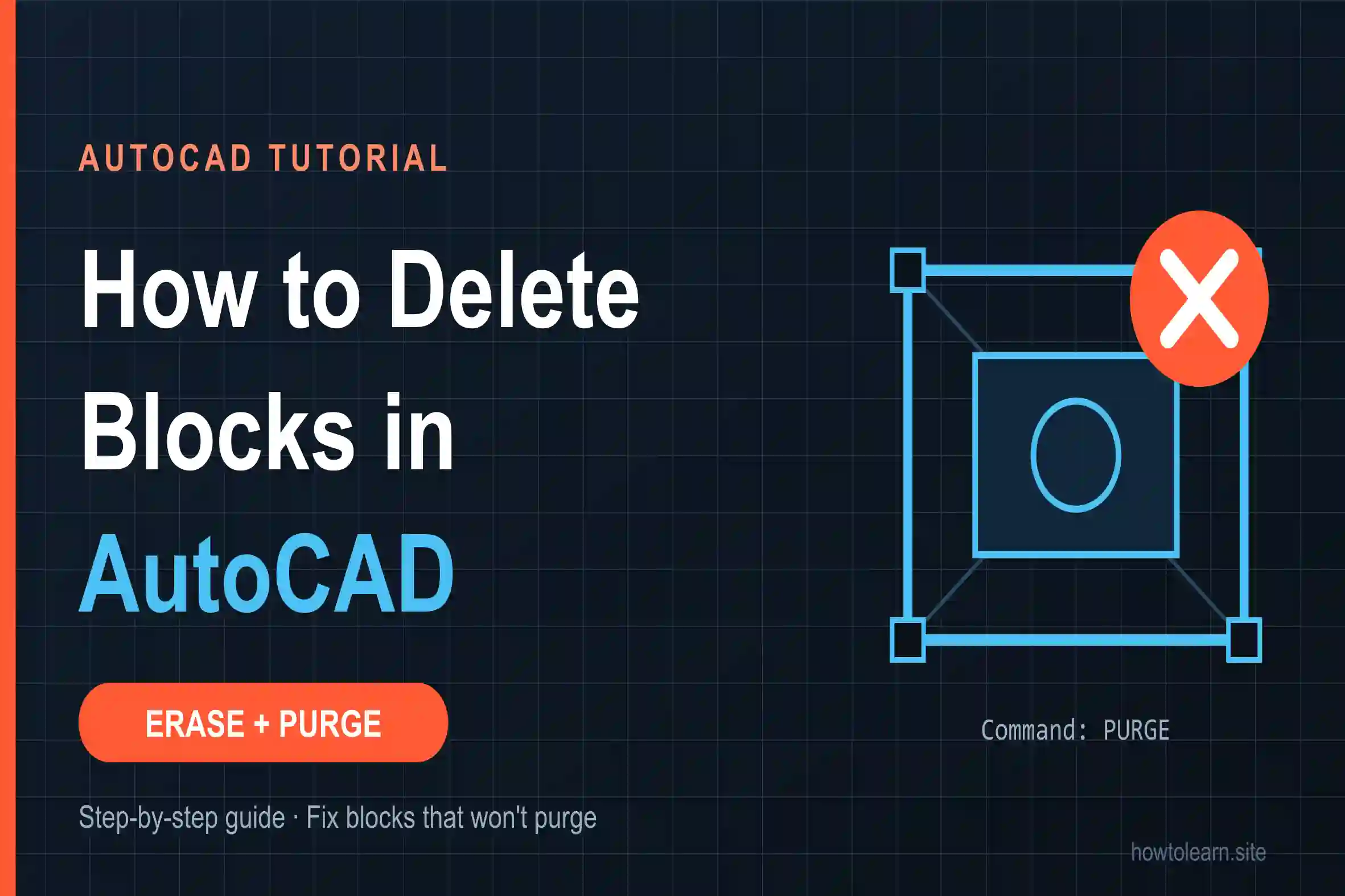
Learn how to delete blocks in AutoCAD the right way: erase every copy, then PURGE the definition. Plus fixes for blocks that...
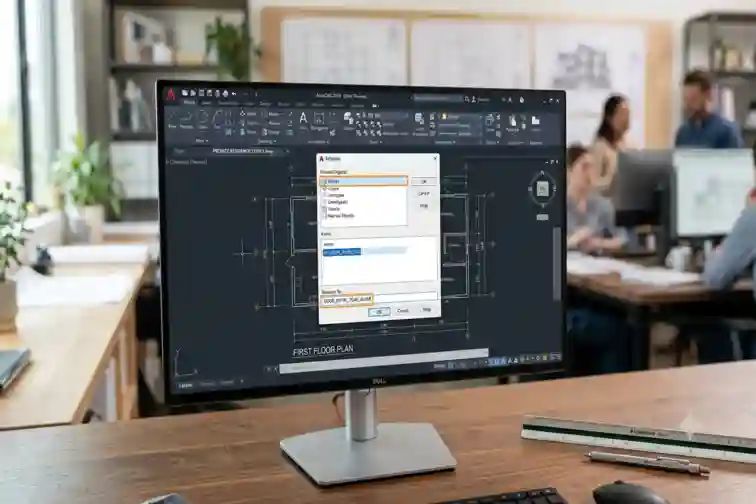
You’ve dropped a block into your drawing, and the name is wrong. Maybe it’s Block1, maybe it’s DOOR_FINAL_v7_REAL, maybe a client sent a file where every chair has a cryptic name. You click the block, look for a name field, and find nothing you can edit. I’ve watched plenty of people get stuck right here.
Take a breath. Learning how to rename a block in AutoCAD is a thirty-second job once you know where AutoCAD hides the tool. If you’re still new to the software and everything feels a bit hidden, is AutoCAD hard to learn? will make you feel better.
Short Answer: How do you rename a block in AutoCAD?
Type REN (or RENAME) in the command line and press Enter. In the Rename dialog, select Blocks on the left, click your block in the list, type the new name in Rename To, click the Rename To button, then click OK. Every copy of that block in the drawing updates to the new name.
That’s the whole answer. Now let’s make sure it works for you, because it doesn’t always, and the reasons are rarely explained.
Here’s the thing most tutorials skip. When you click a block in your drawing, you’re selecting a block reference, a placeholder pointing to a stored block definition. The name lives in the definition, not in the thing you clicked. That’s why the Properties palette gives you no name box to edit.
Renaming the definition renames all instances at once. Handy, but worth remembering before you click OK.
This is the method to learn. It’s the one to use to rename a block in AutoCAD quickly and safely.
REN in the command line and press Enter. It’s a keyboard command with no ribbon button, which is exactly why people can’t find it.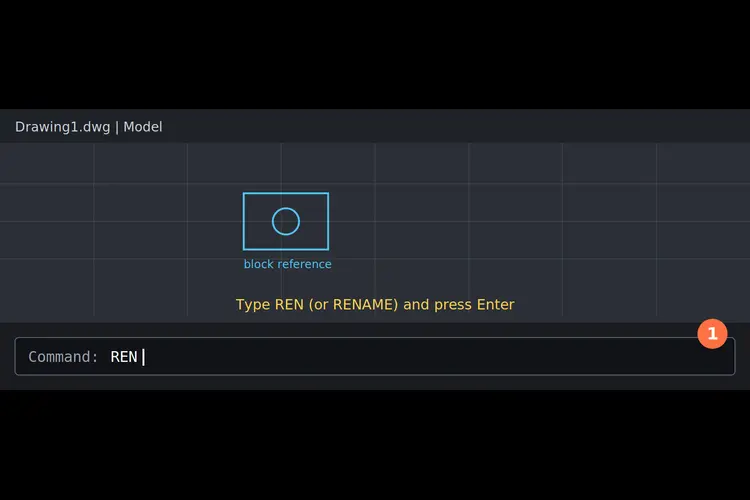
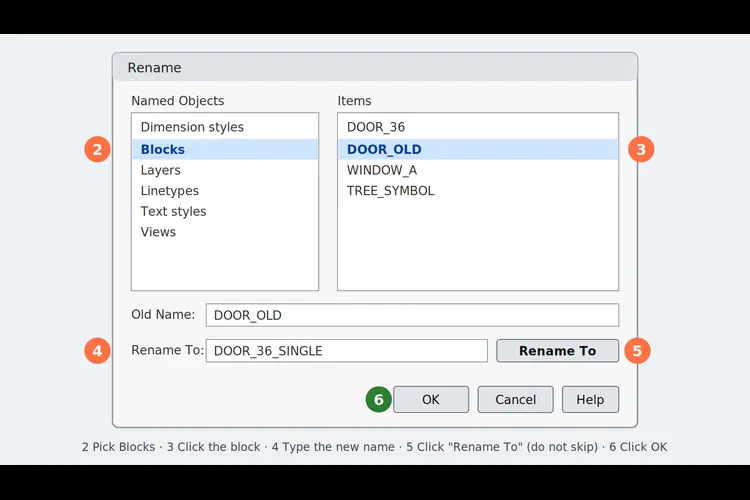
If you need to rename several blocks in one session, click Rename To after each one and press OK only at the end.
Okay, this is where it gets fun. Say a supplier’s drawing has fifty blocks all starting with OLD_ and you want them to start with NEW_. Don’t do fifty renames.
In the Rename dialog, pick Blocks, then in Old Name type OLD_* and in Rename To type NEW_*. Click Rename To, then OK. Every block matching the pattern gets renamed in one go, so OLD_DOOR becomes NEW_DOOR, and so on.
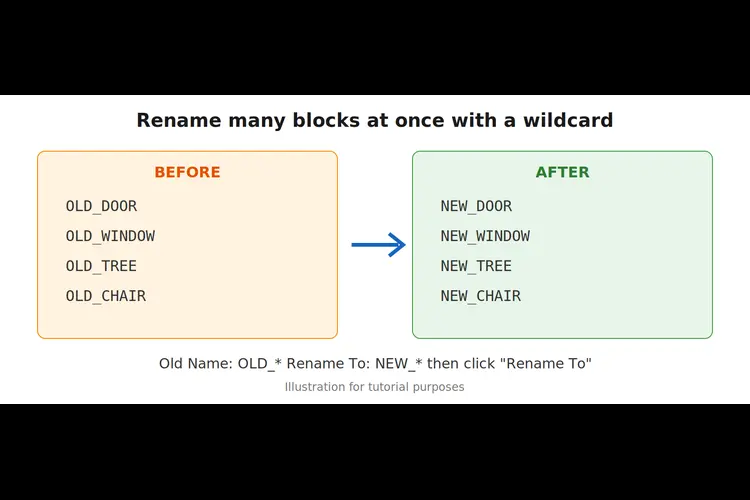
Wildcards are a feature of the dialog, so if you’re on AutoCAD for Mac and the behavior differs, check your version’s help. Check the result in the list before you close the box.
If you like keyboards or you’re writing a script, type -RENAME, choose Block, then enter the old name and the new name when prompted. Same result, no dialog. It’s great for macros.
In recent AutoCAD versions you can open the Blocks palette (BLOCKSPALETTE), right-click a block, and choose Rename. If you don’t see the option, your version may not have it, so use Method 1.
Sometimes you want a new name but also want to keep the original. Double-click the block to open the Block Editor (or type BEDIT), then use Save Block As (BSAVEAS) to save it under a new name. The old definition stays in the drawing, so run PURGE afterward if you no longer need it.
And if you’d rather swap one block for another everywhere without exploding anything, BLOCKREPLACE does exactly that.
Let’s go through the usual suspects.
< > / \ " : ; ? * | = `.*U123). These can’t be renamed. That’s normal behavior, and it usually happens with dynamic blocks. Rename the base block definition instead.| in them). Dependent names belong to the referenced file. Either rename the block in the source DWG, or bind the Xref first (with XBIND and the Block option, or by binding the Xref), then rename. If you rename the Xref itself, remember its layer names update too.A few gotchas that cause real headaches later.
It only changes the name inside the current drawing. If you saved that block as a separate file with WBLOCK, that file keeps its old name. Likewise, if you insert the block from a library again, the old name comes back as a separate block. The upside: renaming is a neat trick when you want to keep the original untouched and insert a modified version beside it.
Scripts and routines that call the old name will break, so update them.
Not sure which block is which? Open ADCENTER (DesignCenter) to browse and preview the blocks stored in a drawing before you rename anything.
Once you’ve learned how to rename a block in AutoCAD, the real win is naming blocks well from the start:
CATEGORY_ITEM_SIZE, for example DOOR_SINGLE_900PURGE after big renames to remove unused definitionsIf you’re building your skills from scratch, the step-by-step AutoCAD 2D learning guide shows where block housekeeping fits in a real workflow. And if your drawings are civil or survey-heavy, the cut and fill in AutoCAD guide is a good next read, because clean naming matters even more in big site files.
For more guidance, you can watch this video: AutoCAD rename block video.
Q1: What is the command to rename a block in AutoCAD?
RENAME (or REN) opens the dialog, and -RENAME does the same at the command line. There is no separate “BLOCKRENAME” command.
Q2: How do I rename a block in AutoCAD without the dialog box?
Use -RENAME, choose Block, then type the old and new names. In newer versions you can also right-click a block in the Blocks palette and pick Rename.
Q3: Can I rename multiple blocks at once?
Yes. In the Rename dialog use a wildcard such as OLD_* in Old Name and NEW_* in Rename To, then click Rename To.
Q4: Why is the Rename button not working? Usually the new name already exists, contains illegal characters, or you clicked OK without clicking the Rename To button first.
Q5: Does renaming a block change every copy in my drawing? Yes. Renaming changes the block definition, so every reference updates.
Q6: Will renaming change the saved WBLOCK file? No. A block saved with WBLOCK is a separate DWG file and keeps its own file name.
Q7: Can I rename a block inside an Xref? Not directly. Rename it in the source drawing, or bind the Xref first and then rename.
Learn how to delete blocks in AutoCAD the right way: erase every copy, then PURGE the definition. Plus fixes for blocks that...
Learn how to change units in AutoCAD step-by-step. Discover how to use UNITS, -DWGUNITS, and DIMSTYLE to scale drawings and blocks without...
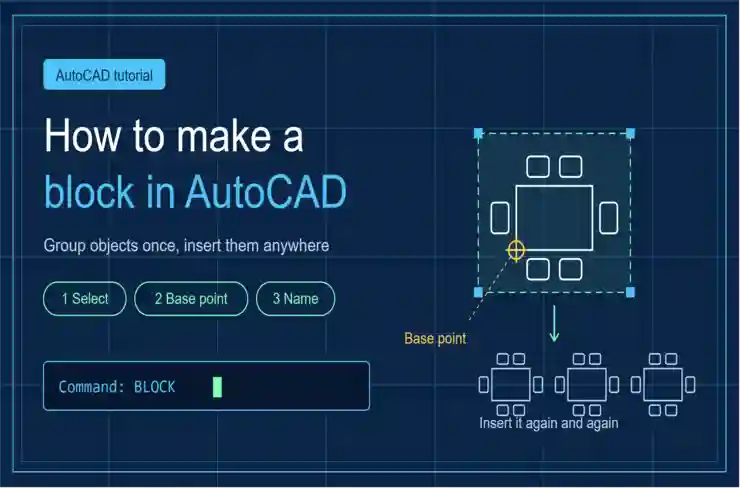
Learn how to make a block in AutoCAD step-by-step. Discover best practices for Layer 0, base point setup, WBLOCK exports, and editing...
Free, short and practical. No spam, unsubscribe anytime.
Thanks! You are on the list.