
How to Change Image Resolution in AutoCAD (Google Earth + LISP)
How to change image resolution in AutoCAD for map captures and Google Earth images, including a short LISP routine that sets Fine...
Every tutorial throws letters at you, L, TR, CO, and carries on as if you already know them. This AutoCAD commands list is the page to keep open beside those tutorials: the commands that matter for 2D drafting, grouped by the job they do, each with its shortcut and one plain line on what it does.
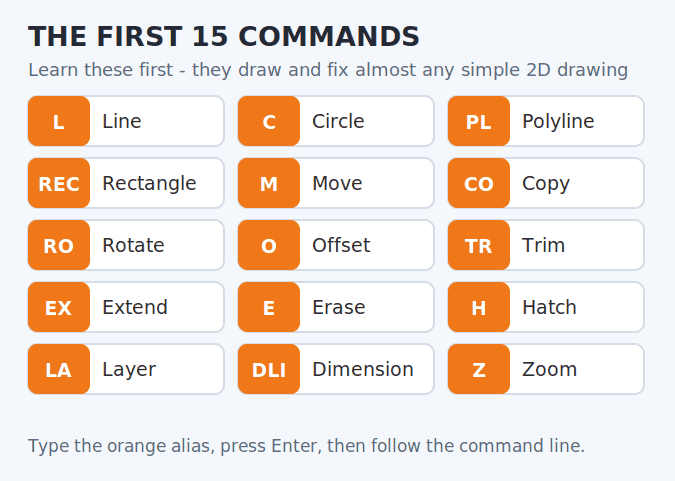
Short Answer: What belongs on an AutoCAD commands list for everyday drafting? The working set is smaller than you fear: about 86 commands cover drawing, editing, layers, blocks, dimensions and printing for 2D work. Learn 15 of them first, LINE, CIRCLE, MOVE, COPY, TRIM and OFFSET among them, and the rest can arrive one drawing at a time, because the same few commands repeat in almost every drawing you will ever make.
Bookmark this page and treat it as your lookup table. Below you will find how commands actually run, the 15 to learn first, the full grouped list, the function keys, fixes for the command problems beginners hit, and how to bend the shortcuts to your own habits.
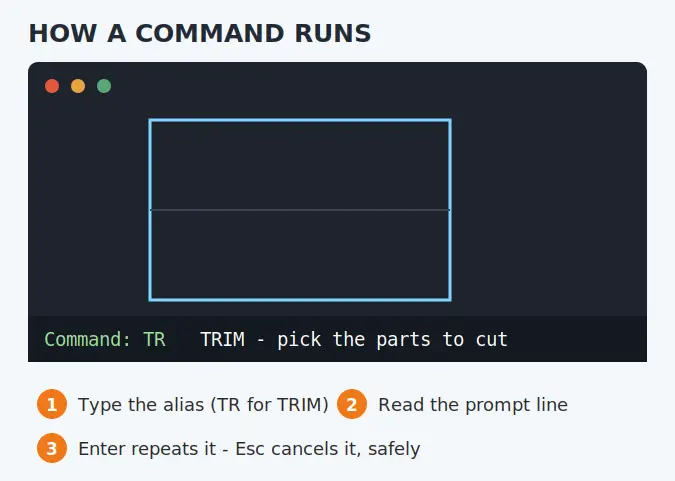
Every command in AutoCAD can be started three ways: click its ribbon icon, type its full name, or type its short alias and press Enter. Typing wins once you know even a handful of aliases, because your hand never leaves the keyboard to go hunting through tabs.
Three habits make the list below much easier to use. First, after typing an alias, glance at the command line at the bottom of the screen: AutoCAD is always telling you the next step there, such as which point or object it wants. Second, press Enter or the spacebar to repeat the last command instead of retyping it. Third, press Esc to cancel a command that has gone wrong; nothing breaks, and you can simply start it again.
If you are new, ignore the big tables for a moment. These 15 commands, in this order, take you from a blank screen to a simple finished drawing, and they are the ones the step-by-step AutoCAD 2D learning timeline is built around.
Practise these inside one small drawing, a room outline is perfect, before adding more. Speed comes from these becoming automatic, not from knowing two hundred commands vaguely.
| Command | Shortcut | What it does |
|---|---|---|
| LINE | L | Draws one straight segment between two points |
| PLINE | PL | Draws connected segments that stay a single object |
| CIRCLE | C | Draws a circle from a centre point and a radius or diameter |
| ARC | A | Draws an arc, most simply through three points |
| RECTANG | REC | Draws a rectangle from two opposite corners |
| POLYGON | POL | Draws a regular shape with 3 to 1,024 equal sides |
| ELLIPSE | EL | Draws an ellipse from its two axes |
| SPLINE | SPL | Draws a smooth curve through or near picked points |
| POINT | PO | Places a single point marker |
| XLINE | XL | Draws a construction line that runs to infinity both ways |
| RAY | RAY | Draws a construction line that starts at a point and runs one way |
| DONUT | DO | Draws a thick ring, or a filled dot if the inside diameter is zero |
| REVCLOUD | REVCLOUD | Draws a revision cloud around changed areas |
| HATCH | H | Fills a closed outline with a pattern, gradient or solid colour |
One of these deserves a warning early: a hatch only works inside a fully closed outline, and a gap too small to see is still a gap. If your fills keep failing, the guide to inserting hatch patterns in AutoCAD walks through the boundary checks that fix it.
| Command | Shortcut | What it does |
|---|---|---|
| MOVE | M | Moves selected objects by a distance and direction |
| COPY | CO | Duplicates objects, once or repeatedly |
| ROTATE | RO | Turns objects around a base point by an angle |
| SCALE | SC | Enlarges or shrinks objects by a factor or by reference |
| MIRROR | MI | Flips objects into a mirror image across a line |
| OFFSET | O | Makes a twin of an object, running parallel at a distance you set |
| TRIM | TR | Cuts objects back to where they meet other objects |
| EXTEND | EX | Lengthens objects until they meet other objects |
| FILLET | F | Rounds the corner where two objects meet |
| CHAMFER | CHA | Replaces a corner with a straight angled edge |
| ARRAY | AR | Copies objects into rows and columns, a circle pattern or along a path |
| STRETCH | S | Pulls part of a drawing longer or shorter with a crossing selection |
| ERASE | E | Deletes selected objects |
| EXPLODE | X | Breaks a block or polyline into its separate pieces |
| BREAK | BR | Splits one object into two at a chosen point |
| JOIN | J | Merges touching lines and arcs into one object |
| PEDIT | PE | Edits a polyline: joins segments, changes width, smooths it |
| LENGTHEN | LEN | Changes an object’s length by an amount, a percentage or to a total |
| ALIGN | AL | Moves, rotates and optionally scales objects to line up with other geometry |
| DIVIDE | DIV | Places markers along an object split into a set number of equal parts |
| MEASURE | ME | Places markers along an object at a set spacing |
SCALE hides the most useful trick on this page. Its Reference option sizes an object to match something already drawn, which is how you fix drawings that arrive at the wrong size; the guide to scaling with two reference points in AutoCAD shows that method step by step.
| Command | Shortcut | What it does |
|---|---|---|
| LAYER | LA | Opens the Layer Properties Manager, the control centre for layers |
| LAYISO | LAYISO | Hides or locks every layer except the ones you pick |
| LAYOFF | LAYOFF | Switches off the layer of the object you click |
| LAYON | LAYON | Switches every layer in the drawing back on |
| LAYFRZ | LAYFRZ | Freezes the layer of the object you click, hiding it completely |
| LAYTHW | LAYTHW | Thaws all frozen layers |
| LAYLOCK | LAYLOCK | Locks the layer of the object you click so it cannot be edited |
| LAYUNLOCK | LAYUNLOCK | Unlocks the layer of the object you click |
| MATCHPROP | MA | Paints the properties of one object, its layer, colour and linetype, onto others |
| PROPERTIES | PR | Opens the Properties palette for the selected objects (also Ctrl+1) |
| PURGE | PU | Removes unused blocks, layers and styles so the file stays lean |
| UNITS | UN | Sets the drawing’s measurement units and precision |
UNITS looks dull and saves more drawings than any command here, because a file drawn in inches and one drawn in millimetres only misbehave when they meet. If your pasted objects arrive strangely sized, the guide to changing units in AutoCAD explains the fix.
| Command | Shortcut | What it does |
|---|---|---|
| BLOCK | B | Turns selected objects into one named, reusable block |
| INSERT | I | Places a copy of a block into the drawing |
| WBLOCK | W | Saves selected objects or a block out as its own drawing file |
| BEDIT | BE | Opens a block in the Block Editor so you can change every copy at once |
| ATTDEF | ATT | Adds a fill-in text label, an attribute, to a block definition |
Blocks are where a drawing stops being lines and starts being a system: draw a door once, insert it forty times, edit it once and all forty update. The full workflow, from first block to keeping a library, is in the guide to making a block in AutoCAD.
| Command | Shortcut | What it does |
|---|---|---|
| MTEXT | T | Creates a paragraph-style text block with formatting |
| TEXT | DT | Creates a single line of text; fine for short labels |
| STYLE | ST | Creates and edits text styles: font, height and effects |
| DIMSTYLE | D | Creates and edits dimension styles: arrows, text size, spacing |
| DIM | DIM | The smart dimension tool: reads the object and picks the right type |
| DIMLINEAR | DLI | Dimensions a straight horizontal or vertical distance |
| DIMALIGNED | DAL | Dimensions along the angle of a slanted object |
| DIMANGULAR | DAN | Dimensions the angle between two lines |
| DIMRADIUS | DRA | Dimensions the radius of a circle or arc |
| DIMDIAMETER | DDI | Dimensions the diameter of a circle or arc |
| DIMCONTINUE | DCO | Chains dimensions end to end from the previous one |
| DIMBASELINE | DBA | Stacks dimensions that all measure from one starting point |
| MLEADER | MLD | Draws a label with an arrow pointing at the thing it names |
| TABLE | TB | Inserts a table for schedules and parts lists |
A quiet trap hides here: DIMSTYLE (D) controls how every dimension looks, so set it up once, at the start, instead of repairing the appearance of fifty dimensions later.
| Command | Shortcut | What it does |
|---|---|---|
| DIST | DI | Reports the distance and angle between two points |
| AREA | AA | Reports the area and perimeter of an outline or object |
| LIST | LI | Lists everything known about selected objects in a text window |
| ID | ID | Reports the exact coordinates of a picked point |
| ZOOM | Z | Changes how much of the drawing fills the screen; E jumps to everything |
| PAN | P | Slides the view across the drawing without zooming |
| REGEN | RE | Redraws the display cleanly when curves look rough or objects look stale |
| QSAVE | Q | Saves the drawing as it is (Ctrl+S does the same) |
| SAVEAS | SAVEAS | Saves the drawing under a new name or file type |
| PLOT | PLOT | Opens the print dialog for paper or PDF output (also Ctrl+P) |
| AUDIT | AUDIT | Checks the drawing file for errors and can fix what it finds |
| PURGE | PU | Already listed above with layers; it earns its place here too as file first aid |
That is the full working set: 86 commands appear in the tables above, and an honest secret comes with it. Nobody memorises all 86 before drawing. You memorise the first 15, and the others attach themselves to real problems as those problems appear in your drawings.
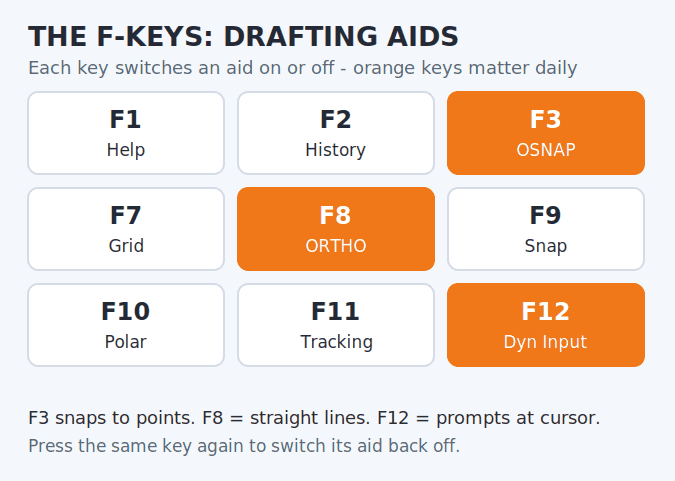
Two more sets of keys sit around the commands themselves. The F-keys toggle the drafting aids that keep drawings accurate, and getting them by feel matters as much as any command. Autodesk’s official AutoCAD shortcuts guide is the reference these tables follow.
| Key | Aid it toggles |
|---|---|
| F1 | Help |
| F2 | Text window showing command history |
| F3 | Object snap (snapping to endpoints, centres and similar points) |
| F7 | Grid display |
| F8 | Ortho (movement locked to horizontal and vertical) |
| F9 | Snap mode (cursor moves in fixed steps) |
| F10 | Polar tracking (movement guided at set angles) |
| F11 | Object snap tracking (alignment paths from snap points) |
| F12 | Dynamic input (dimensions and prompts beside the cursor) |
| Shortcut | Action |
|---|---|
| Ctrl+S | Save |
| Ctrl+O | Open a drawing |
| Ctrl+N | Start a new drawing |
| Ctrl+P | Plot |
| Ctrl+Z | Undo |
| Ctrl+Y | Redo |
| Ctrl+A | Select everything |
| Ctrl+C / Ctrl+V | Copy and paste objects |
| Ctrl+1 | Properties palette |
| Ctrl+9 | Command line, shown or hidden |
| Ctrl+0 | Clean screen (hides the interface for maximum drawing space) |
| Esc | Cancel the current command |
Nine times out of ten this is spelling. Aliases are exact, so typing PLINE works and typing POLYLINE as one casual word also works, but a near-miss like TRIMX gets you the error. Type the first two or three letters slowly and watch the suggestion list that appears above the command line; clicking the right suggestion also teaches you the correct spelling for next time. If the spelling is right and it still fails, the command may not exist in your version: AutoCAD LT, for instance, contains no 3D modelling or AutoLISP commands at all.
If you learned from an older video, this one is real and it is not your fault. Since AutoCAD 2021, TRIM and EXTEND start in a quick mode where everything on screen counts as a cutting edge, so one click trims against whatever is nearest. To return to the older way, where you choose the cutting edges first, start the command, type MODE, press Enter, and choose Standard. Both modes are fine; confusion only arrives when the video and your screen disagree.
The command is almost certainly waiting for you. Look at the command line: it will say something like “Select objects” or “Specify first corner”, which means the tool started fine and is asking for its input. Beginners often press Esc here and lose a command that was working. Read the prompt, do what it asks, and press Enter when it asks for the next thing. Turning dynamic input on with F12 also brings these prompts to your cursor, where they are harder to miss.
Aliases can be customised, and offices do customise them, so CO might not mean COPY on a shared machine. This is a feature being used as intended, not a fault. The fix for your own machine is in the next section; on a shared machine, type full command names, which nobody remaps.
Every alias lives in a plain text file called acad.pgp, and the format could not be simpler: the alias, a comma, an asterisk, then the command, one per line. If your fingers insist that C should copy instead of drawing circles, that file is where the change goes.
In full AutoCAD, the ALIASEDIT command opens a small window for the same job, which is kinder than editing raw text. Either way, customise sparingly: every alias you move away from the standard is one you will fumble on somebody else’s computer.
AutoCAD contains hundreds of commands once the 3D tools, the industry toolsets and the system variables are counted, and no working drafter uses most of them. This list deliberately covers the 2D drafting core, the commands behind almost every floor plan, fabrication drawing and site layout, and leaves out 3D modelling, rendering and programming commands entirely.
It also means the list travels well: everything above works in current versions of AutoCAD and, with the exception of the customisation extras noted in the answers below the article, in AutoCAD LT as well. If you later move into 3D or AutoLISP, those are new lists to learn then, not gaps in this one.
None of this requires talent for memorising. It requires one drawing at a time, which is the way everyone who looks fast in AutoCAD actually got fast.
For more guidance, you can watch this video: AutoCAD Tutorial for Beginners.
Start with LINE (L), CIRCLE (C), PLINE (PL), RECTANG (REC), MOVE (M), COPY (CO), OFFSET (O), TRIM (TR), EXTEND (EX), ERASE (E), HATCH (H), LAYER (LA) and ZOOM (Z). These fifteen or so commands draw and fix almost every simple 2D drawing, and everything else builds on them.
This page covers the 86 commands used in everyday 2D drafting, grouped by task with their shortcuts. AutoCAD itself contains hundreds more, including 3D and toolset commands; Autodesk publishes the full official shortcuts guide, which is linked from this article.
The command is the full instruction, such as CIRCLE or TRIM. The shortcut, called an alias, is the short version you type, such as C or TR, followed by Enter. Both start the same tool; the alias just saves keystrokes, which is why experienced users type instead of hunting through the ribbon.
Yes. Aliases live in a small text file called acad.pgp. Edit the alias next to a command, save the file, then run REINIT and tick PGD File so AutoCAD reloads it. In full AutoCAD, the ALIASEDIT command opens a friendlier editor for the same file. Keep a backup of the original first.
They toggle drafting aids. The ones you will touch daily are F3 for object snap, F7 for the grid, F8 for ortho, F10 for polar tracking and F12 for dynamic input. F1 opens help and F2 shows the command history window. Pressing a key again switches its aid back off.
Usually it is a spelling slip, because AutoCAD expects the exact command name or a known alias. It can also mean the command does not exist in your version: AutoCAD LT, for example, has no 3D or AutoLISP commands. Check the spelling first, then check whether your version includes the tool.
Almost all of them do. Every drawing, editing, layer, block and dimension command on this list works in LT the same way as in full AutoCAD. The exceptions on this page are only the customisation extras: LT cannot run AutoLISP, and the ALIASEDIT editor is a full-version tool.
How to change image resolution in AutoCAD for map captures and Google Earth images, including a short LISP routine that sets Fine...
Learn how to insert a hatch pattern in AutoCAD: pick a pattern, set scale and angle, add custom PAT files and fix...
Learn how to convert text to sketch geometry in AutoCAD with TXTEXP, WMFOUT/WMFIN or the PDF route, plus fixes for LT, curves...
Free, short and practical. No spam, unsubscribe anytime.
Thanks! You are on the list.