How to Insert Hatch Pattern in AutoCAD (Step by Step)
Learn how to insert a hatch pattern in AutoCAD: pick a pattern, set scale and angle, add custom PAT files and fix...
You zoom in on a site image and the roads dissolve into soft, blocky smears. Annoying, right? Take a breath: how to change image resolution in AutoCAD depends on where the picture came from. A map capture has a resolution setting you can flip by hand or with LISP, while a Google Earth picture is locked the moment you save it. Let’s work out which one you have.
Short Answer: How do you change image resolution in AutoCAD for map and Google Earth images? For a captured map image, click its border, open the Map Image tab and pick Fine or Very Fine in the Map Image Resolution flyout, or set the Resolution property with AutoLISP. For a Google Earth picture, resolution is fixed when you save it, so recapture it larger in Google Earth Pro.
The details below cover both routes, plus the reasons a “Very Fine” image can still look soft.
The phrase “Google Earth image in AutoCAD” hides three different situations, and each one is fixed in a different place.
| Where the picture came from | Can AutoCAD change its resolution? | Where to fix it |
|---|---|---|
| A map capture made with GEOMAPIMAGE | Yes, four presets | The ribbon or LISP |
| A file saved from Google Earth Pro and inserted as a raster image | No, the pixels are set when you save | Google Earth Pro |
| An add-on import that reads a .geprint file | Set before saving in Google Earth | Google Earth Pro |
One detail trips people up: AutoCAD’s own online map (the GEOMAP command) offers Esri and Bing styles, not Google Earth. So a true Google Earth picture always arrives as a saved file or through an add-on.
This is the fast route, and it needs no code. You must be signed in to your Autodesk account, because the map image tools only work online. Here is the flow:
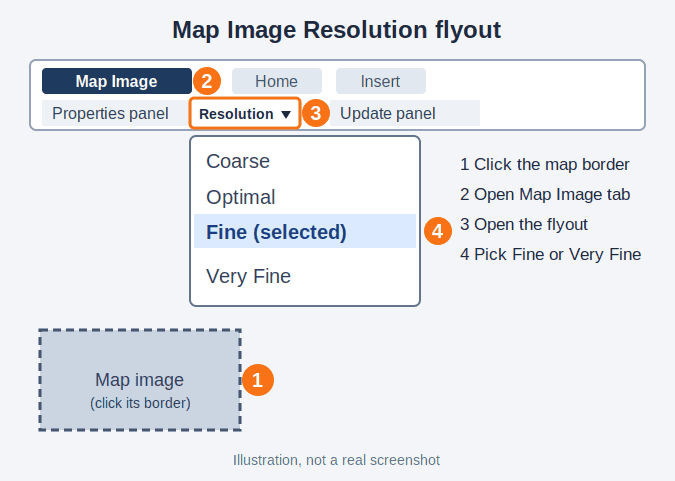
New captures start at Optimal. When you move up to Fine, expect labels on road maps to shrink even though your zoom hasn’t changed, because the image now holds more pixels per drawing unit. That’s normal, and it’s a handy way to confirm the change actually happened.
Sooner or later you’ll refresh the image with GEOMAPIMAGEUPDATE, or with Reload Image on the ribbon. You get two choices, and they behave differently. Reload Only pulls fresh imagery and keeps your resolution. Optimize and Reload resets the image to the Optimal resolution for on-screen viewing, so your Fine setting quietly disappears. If you refresh often, choose Reload Only. Autodesk documents the optimize option in its GEOMAPIMAGEUPDATE help page.
If you capture maps often, clicking through the ribbon gets old fast. A forum thread on this exact problem found that the map image object exposes a Resolution property you can read and write with getpropertyvalue and setpropertyvalue. Users report 1 for Optimal and 2 for Fine. Treat those two numbers as the only confirmed values.
Here is a small routine that sets every map image in the drawing to Fine:
(defun c:MAPFINE ( / ss i)
  (if (setq ss (ssget "_X" '((0 . "GEOMAPIMAGE"))))
    (progn
      (setq i 0)
      (repeat (sslength ss)
        (setpropertyvalue (ssname ss i) "Resolution" 2)
        (setq i (1+ i)))
      (princ (strcat "\n" (itoa (sslength ss)) " map image(s) set to Fine.")))
    (princ "\nNo map images found."))
  (princ))
Want Very Fine or Coarse? Don’t guess the numbers. Set the value by hand from the flyout, then run this reader to see what AutoCAD reports:
(defun c:MAPRESCHECK ( / ss i)
  (if (setq ss (ssget "_X" '((0 . "GEOMAPIMAGE"))))
    (progn
      (setq i 0)
      (repeat (sslength ss)
        (princ (strcat "\nMap image " (itoa (1+ i)) ": Resolution = "
                       (vl-princ-to-string (getpropertyvalue (ssname ss i) "Resolution"))))
        (setq i (1+ i))))
    (princ "\nNo map images found."))
  (princ))
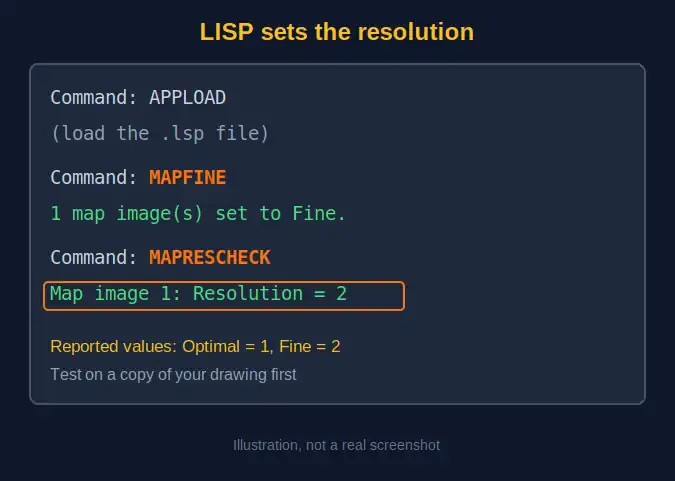
Save both routines in a .lsp file, load it with APPLOAD, and try it on a copy of your drawing first. If you build your own capture routine, the forum’s tip is to call setpropertyvalue on the last created entity immediately after the capture, rather than hunting for the object afterward.
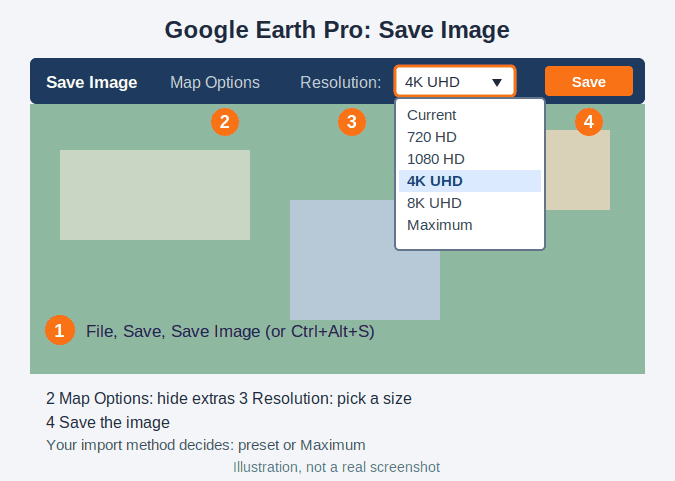
Now the other half of the keyword. Google Earth pictures don’t have a resolution dial inside AutoCAD, so the work happens before the image ever reaches your drawing. Google’s help page for saving a map image covers the basics in Google Earth Pro:
Once the picture is inside your drawing, it still has to be set to real-world size. Our guide on how to scale with two reference points in AutoCAD walks through that step, and it helps to set your drawing units first with this units guide.
Which resolution should you choose? Sources disagree, and the honest answer is “it depends on how you import”. General advice says to use Maximum, which one forum answer describes as stretching the longer side to 4,800 pixels. Spatial Manager, an add-on vendor, says the opposite for .geprint imports: choose a 16:9 preset up to 8K UHD with Google Earth maximized, and skip Maximum because the variable proportions can’t be read. If you insert the file by hand, Maximum is fine. If an add-on reads the georeference file, follow that add-on’s rule.
Two more notes. Saving images this way is a Google Earth Pro desktop feature, and Spatial Manager says its import method doesn’t work with the web or mobile apps. And for a large site, one image rarely holds enough detail. Users report better results by saving the area in several sections and placing each one, since every section carries its own full set of pixels. If you try that with a georeferencing add-on, keep the same eye altitude for every capture and pan instead of zooming.
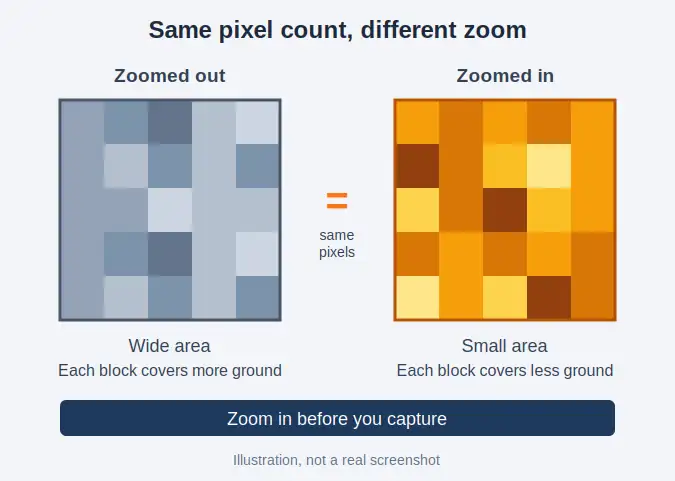
This is the question behind most “my resolution setting doesn’t work” posts. The setting controls how the captured image is stored, not how much detail exists in the first place.
An experienced forum contributor explained it well: AutoCAD’s online map is a stack of image tiles, and each capture grabs whatever tiles are showing at the zoom level you happen to be at. Capture a wide area and you get a wide, low-detail picture. Zoom in first and the same number of pixels now cover a smaller area, so it looks much sharper. A Google Earth help thread makes the same point from the other direction: a saved image can never be clearer than the photo it was taken from.
So the practical rules are simple:
Map images are awkward objects. Forum users found that picking one with entsel returns nil, and that a selection set built inside a loaded .lsp file sometimes came back empty even though the same call worked typed at the command line. The reported workaround is to send the selection command through the active document using vla-sendcommand. These threads date from 2018, so test on your version.
Check how you refresh. As covered above, Optimize and Reload returns the image to Optimal. Switch to Reload Only.
This one appeared with the AutoCAD 2026 release. Autodesk says Bing layers were missing from the Geolocation ribbon in AutoCAD and Civil 3D 2026, and recommends the 2026.0.1 or later update. CAD Forum, a community run by an Autodesk partner, also relays Microsoft’s announced end date for Bing Maps of June 2028 and suggests Esri or OpenStreetMap for drawings that must last. Treat that date as reported, not guaranteed.
The live online map is shown on screen but does not print. Capture the area as a map image object so it becomes real drawing content. Forum answers add that an active map in any viewport can trigger a plot error, so turn the map off after capturing.
When an add-on reads a .geprint file, a Google Earth window that isn’t maximized can make the scale calculation fail, according to the vendor. Maximize the window before saving.
It can’t add detail that the source never had. It won’t make the live map printable. And it won’t turn a low-quality aerial into a survey-grade one; Autodesk community experts point people toward their own drone imagery or third-party services when the free imagery isn’t good enough.
You may also run into a free utility called GEarth on CAD Forum, a VLX LISP file based on community code. Its listing describes it as linking a georeferenced DWG with the Google Earth window, so it helps you navigate, not change resolution.
New to the software overall? Start with the AutoCAD 2D learning guide, then come back to these habits.
For more guidance, you can watch this video: Adding a Google Earth Image to AutoCAD (and Georeferencing).
Click the map image border, open the Map Image tab, and choose a preset from the Map Image Resolution flyout in the Properties panel. The presets are Coarse, Optimal, Fine and Very Fine. You must be signed in to your Autodesk account.
Yes. Users report that setpropertyvalue on the map image entity's Resolution property works, with 1 meaning Optimal and 2 meaning Fine. Run it right after the capture, and test on a copy of your drawing first.
No. The GEOMAP command offers Esri and Bing map styles. A Google Earth picture reaches AutoCAD as a file you save from Google Earth Pro, or through a third-party add-on that reads Google Earth data.
The captured pixels come from the zoom level showing when you captured, and the source imagery has its own limit. Zoom in before capturing, capture only the area you need, and make separate captures for very different drawing scales.
Save the largest size your workflow accepts. If you import with a .geprint file through Spatial Manager, pick a 16:9 preset up to 8K UHD with Google Earth maximized, and avoid the Maximum option, which that vendor says cannot be imported.
Yes, according to Autodesk forum users. Optimize and Reload resets the map image to the Optimal resolution, while Reload Only refreshes the image data and keeps the resolution you chose.
The live online map does not print. To plot imagery, capture the area as a map image object, then turn the online map off before plotting, since forum answers say an active map can trigger a plot error.
Learn how to insert a hatch pattern in AutoCAD: pick a pattern, set scale and angle, add custom PAT files and fix...
Learn how to convert text to sketch geometry in AutoCAD with TXTEXP, WMFOUT/WMFIN or the PDF route, plus fixes for LT, curves...
Learn how to choose a Jetson module: compare Orin Nano, Orin NX, AGX Orin and Thor by memory, power, JetPack support and...
Free, short and practical. No spam, unsubscribe anytime.
Thanks! You are on the list.