AutoCAD Commands List: 86 Essential Commands and Shortcuts, Explained Simply
The AutoCAD commands list worth bookmarking: 86 essential commands with shortcuts, grouped by task, plus F-keys, Ctrl shortcuts and the order to...

The interviewer rarely asks anything exotic. Most AutoCAD interviews circle the same ground: coordinates, layers, blocks, layouts, and whether you can still draw when a clock is running. These are the AutoCAD interview questions that come up again and again, each with a short, correct answer you can actually say out loud.
Short Answer: What are the most common AutoCAD interview questions? Expect questions on model space versus paper space, blocks versus xrefs, window versus crossing selection, layer states, coordinate systems and viewport scales, plus basic commands and file formats. Forty questions cover nearly all of it below, grouped from fresher basics to experienced topics, and most interviews add a timed drawing test, so concepts alone are not enough.
Read each answer, then say it back in your own words. If you can explain it in two or three sentences without looking, you own it.
Most hiring for draughtsman and CAD technician roles has two rounds. The first is questions, usually twenty to forty minutes, testing whether you understand what you claim to use every day. The second is practical: a computer, a sketch or PDF, a time limit, and an interviewer who later opens your file and checks the units, the layers and whether the dimensions are real or typed over.
That second round is why this article pairs every concept with the command that performs it. Knowing that a viewport sets the scale is theory; being able to set one at 1:50 while someone watches is the job. If your basics are still shaky, the realistic AutoCAD 2D learning timeline shows the order to build them in.
AutoCAD is Autodesk’s computer-aided design software for creating precise 2D drawings and 3D models. Architects, engineers and drafters use it to produce plans, sections, layouts and fabrication drawings that can be measured, edited and printed to exact scales. It was first released in 1982 and its DWG format became the common language for exchanging technical drawings.
The native drawing format is DWG, the file you open, edit and save every day. DXF is the exchange format for sharing geometry with other CAD programs. DWT files are drawing templates holding saved settings such as units, layers and styles. For issuing drawings, the plotted output is usually PDF.
LT is the lighter, cheaper edition built for 2D drafting and annotation only. Full AutoCAD adds 3D modelling and rendering, the specialised industry toolsets, the Express Tools, and deeper customisation. For pure 2D work the everyday commands behave the same in both, which is why many drafting offices run LT seats. One modern nuance: LT from the 2024 release onwards can run most AutoLISP routines, but it remains 2D-only.
The ribbon across the top groups tools into tabs and panels. The drawing area is the canvas in the middle. The command line at the bottom is where typed commands and prompts appear, and it deserves your attention because AutoCAD asks its questions there. Around those sit the status bar with the drafting aids, the layout tabs for model and paper space, and the navigation tools on the right.
A template (a DWT file) is a starting drawing with your standard setup already inside: units, layers, text and dimension styles, and a title block. Starting from a template means every drawing in the office looks consistent and nobody rebuilds the same setup daily. New drawings normally start from acad.dwt (imperial) or acadiso.dwt (metric), or from your office’s own template.
Because typing an alias such as TR for TRIM is faster than finding the icon, and your eyes stay on the drawing. The command line also shows every option a command offers, many of which the ribbon hides. Interviewers ask this to find out whether you work by keyboard habit or by hunting through menus.
Grips are the small squares that appear on a selected object at its defining points: endpoints, midpoints, centres and quadrants. Clicking a grip and dragging lets you stretch, move, rotate, scale or mirror the object quickly without starting a command first. Pressing Esc clears them.
Run UNITS and choose the type (decimal or architectural), the precision and the insertion units, so geometry arriving from other files scales correctly. The common trap is forgetting that a drawing carries its own unit setting: when insertion units are wrong, a block drawn in inches can land roughly 25 times too large in a millimetre drawing. The guide to changing units in AutoCAD covers the insertion-scale fix for that classic problem.
The WCS is the fixed world coordinate system, the drawing’s permanent X, Y (and Z) frame that never moves. A UCS is a user coordinate system you place yourself, shifting or rotating the working frame to suit the geometry, which helps when drawing on angled walls or inclined faces. UCS returns you to the world system when you finish.
Because then every measurement in the drawing is the real measurement, and nobody does scale arithmetic while drafting. One metre is drawn as one metre (or 1,000 units in a millimetre drawing). Scaling down for paper happens later, in the layout, through the viewport, so the same model can be printed at 1:50 on one sheet and 1:100 on another.
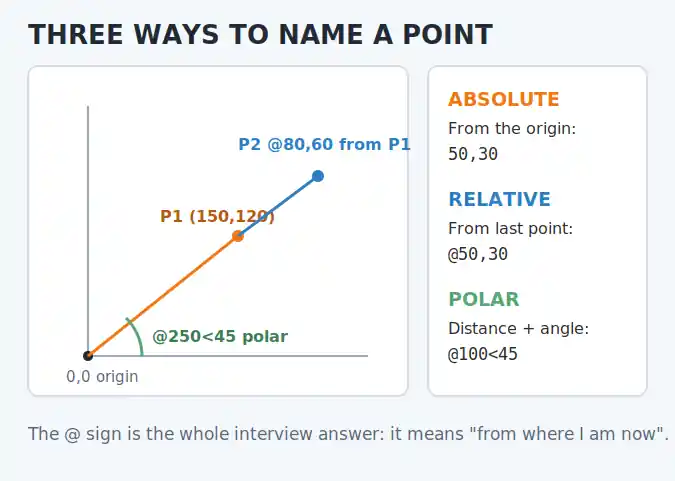
They are three ways to tell AutoCAD where a point is. Absolute coordinates (for example 50,30) are measured from the origin. Relative coordinates (@50,30) are measured from the last point you picked, which suits “this far across, that far up”. Polar coordinates (@100<45) give a distance and an angle from the last point, the natural way to draw a wall of known length at a known angle.
Object snap locks the cursor onto exact geometric points instead of near them. The everyday modes are Endpoint, Midpoint, Center, Intersection, Quadrant, Perpendicular and Tangent. Running snaps are toggled with F3, and right answers here matter because “I click carefully” is not a precision strategy; OSNAP is.
Ortho (F8) restricts movement to perfectly horizontal and vertical, nothing else. Polar tracking (F10) is more flexible: it offers guide angles at increments you choose, such as every 45 degrees, and shows alignment paths and tooltips as you draw. Ortho is a hard restriction; polar is a guide you can leave.
Drag left to right and you get a window selection (shown blue): only objects completely inside the rectangle are selected. Drag right to left and you get a crossing selection (shown green): everything the rectangle touches is selected. Interviewers love this question because the direction of the drag is the whole answer, and it proves you have genuinely drafted.
COPY duplicates an object to a new position you pick. OFFSET creates a parallel copy at an exact distance from the original, which is why it builds wall thicknesses, road edges and concentric shapes. If the interviewer asks which one draws the second line of a wall, the answer is OFFSET.
Both fix a corner where two objects meet. FILLET rounds it with an arc of a radius you set; a radius of zero makes a clean sharp corner. CHAMFER cuts it straight, with two distances or a distance and an angle. One produces a curve, the other a flat bevel.
TRIM cuts objects back to a boundary; EXTEND lengthens them until they reach one. Since AutoCAD 2021 both start in a quick mode where everything on screen acts as a boundary, so a single click trims or extends against the nearest object. Choosing Standard mode restores the older pick-your-boundary-first behaviour.
Set the snap style to isometric, then use F5 (or Ctrl+E) to cycle the active isoplane: left, top or right. The cursor crosshairs tilt to match the plane you are drawing on, and ellipse becomes isocircle for holes on those faces. It is a drawing technique, not a true 3D model, which is a distinction worth saying out loud.
Layers are named sheets stacked inside one drawing, holding related objects: walls in one layer, furniture in another, dimensions in a third. Each layer has its own colour, linetype and visibility, so you can switch whole systems on or off, plot them differently, and edit them safely. A drawing with everything on one layer is the classic sign of a beginner, which is exactly why this question exists.
Off hides the layer, but its objects still regenerate, and they still get selected by Select All. Frozen hides the layer and removes it from regeneration entirely, which lightens heavy drawings, and frozen objects are ignored by Select All. Locked leaves objects fully visible but uneditable, a protection rather than a visibility state. Frozen is the heavy-duty version of off; locked is a different tool altogether.
Layer 0 is AutoCAD’s built-in default layer: it cannot be deleted or renamed, and blocks drawn on it take the colour and linetype of whichever layer they are inserted onto, which makes it the correct home for block geometry. Defpoints is created automatically with dimensions, holds their definition points, and is set never to plot, so never draw real geometry on it.
A block is a set of objects grouped, named and saved inside the drawing so you can insert copies anywhere. Change the definition once and every copy updates; the file also stays smaller than loose geometry repeated fifty times. Doors, windows, furniture and title blocks are classic blocks. The creation workflow is covered in the step-by-step guide to making a block in AutoCAD.
A block is a defined object: edit its definition and all insertions update, and it can carry attributes and be saved for other drawings. A group is a looser saved selection of objects that still behave individually, with no shared definition and no updating behaviour. Blocks are for repeated standard parts; groups are for temporary convenience.
Attributes are fill-in text fields stored inside a block, such as a door’s number, size and fire rating. When you insert the block, AutoCAD prompts for the values. Because the data is structured, it can later be extracted into tables and schedules instead of being retyped.
A block lives inside your drawing file. An xref (external reference) is a link to a separate DWG that displays and plots with yours but stays its own file. When the architect updates the floor plan xref, every drawing referencing it sees the change on reload. Xrefs keep big team projects in sync and individual files light; the price is file management, because the links must survive when files move.
Open one instance in the Block Editor (BEDIT), make the change, and save: every insertion of that block updates at once. For editing a block in place among surrounding geometry, REFEDIT does the same job without isolating it. If an interviewer hears “explode it and fix each copy”, the interview is going badly.
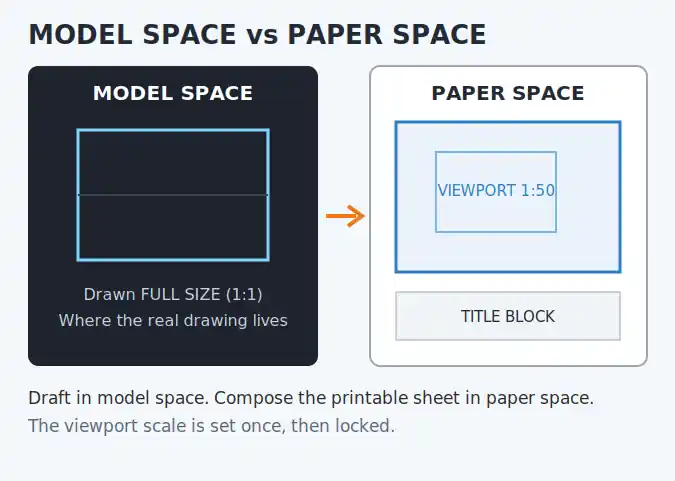
Model space is where the real drawing lives, drawn full size. Paper space is a layout, a sheet of paper with a title block, where viewports act as windows looking onto the model at chosen scales. You draft in model space and compose the printable sheet in paper space; that separation is what lets one model feed several sheets.
A viewport is a resizable window in a layout that frames a view of the model. You set its scale from the scale list in the status bar while the viewport is selected (or with ZOOM inside it using a factor like 1/50XP for a 1:50 sheet), then lock the viewport so an accidental zoom cannot destroy the scale. Forgetting the lock is the most common way drawings get plotted at the wrong size.
Some objects, mainly text, dimensions and hatches, can be made annotative: you give them a real paper size, and AutoCAD resizes them automatically in each viewport so text reads 2.5mm tall on paper whether the viewport is 1:20 or 1:100. Without it, the same text would appear five times larger in one viewport than the other.
A dimension style is a saved set of rules for how dimensions look: text size, arrowheads, spacing and units. Set it once and every dimension matches. The types interviewers expect you to name are linear, aligned, angular, radius, diameter, ordinate and baseline or continued chains, each started from the DIM family of commands.
They are two systems for deciding how colours on screen become lineweights on paper. A CTB (colour-dependent) file maps each drawing colour to a plotted lineweight, the system most offices still use. An STB (named) file assigns plot styles to layers or objects directly, by name, independent of colour. A drawing uses one system or the other, and converting between them is possible but deliberate.
Work in a layout: set the page to the real paper size at 1:1, place the title block, add a viewport, set the viewport scale (say 1:50), lock it, choose the plot style table, and preview before printing. The golden rule is that the layout itself is never scaled; only the viewport is. Tick “what you see is the paper” in your head: if the sheet is A3 and the viewport says 1:50, the print is true.
A title block with the project, drawing title, number, scale, date and revision; the viewports at their locked scales; notes and a legend where needed; and consistent text that comes from annotative styles or the layout itself. Interviewers ask this to hear whether you think about the sheet the client sees, not just the model behind it.
A normal block is fixed; a dynamic block has built-in adjustments, such as grip arrows that stretch a door to standard widths, flip it to swing the other way, or switch its visibility between several drawn states. One dynamic block replaces a shelf of similar static blocks, and saying what problem it solves matters more than reciting how to build one.
Use DesignCenter (ADCENTER, or Ctrl+2): browse to the source drawing inside it, expand its named content, and drag the layers, dimension styles, text styles or blocks you want into your current drawing. Templates are the longer-term answer for office standards, but DesignCenter is the tool for rescuing settings from an existing file, which is what the question is really testing.
AUDIT examines the drawing you have open, reports errors in its database and optionally fixes them in place. RECOVER is used on a file that will not open cleanly: it attempts a repair as it opens. Your safety nets are the .bak file AutoCAD keeps beside each drawing and the autosave .sv$ files, whose location the Options dialog shows.
Start with PURGE to remove unused blocks, layers and styles, then AUDIT to repair database errors. OVERKILL deletes duplicate and overlapping geometry that accumulates after careless copying. Turning off or freezing heavy layers and detaching unneeded xrefs and images also helps. If it is still bloated, writing the contents out to a fresh file with WBLOCK often leaves the corruption behind.
It decides how text behaves when you mirror geometry. With MIRRTEXT set to 1, text mirrors along with everything else and reads backwards, like a reflection. Set to 0, the text flips position but stays readable, which is what almost every drawing wants. It is a favourite trap question because it separates people who have mirrored real drawings from people who have only read command lists.
AutoLISP is AutoCAD’s built-in programming language for automating repetitive work: renaming hundreds of layers, extracting data, generating standard details, checking drawings against office rules. Offices use it because the same ten-minute chore done daily costs real money. It runs in full AutoCAD, and AutoCAD LT from 2024 onwards supports most routines too.
Open with the framework, not the first line: confirm the units and set them; start from the office template so layers and styles are ready; draw the shell full size in model space using coordinates, snaps and OFFSET for wall thicknesses; insert doors and furniture as blocks; dimension and label; then build the layout, set the viewport scale, lock it and plot-check. This question is the whole interview in miniature, and a calm order of operations is the answer.
A certificate can support all of this: Autodesk’s certification programme runs from Certified User to Certified Expert, and the Associate level is the natural target for a fresher who wants a verified line on the CV.
None of these need talent to avoid, only habits, and habits are exactly what forty-five minutes of honest answers reveal.
For more guidance, you can watch this video: AutoCAD Tutorial for Beginners.
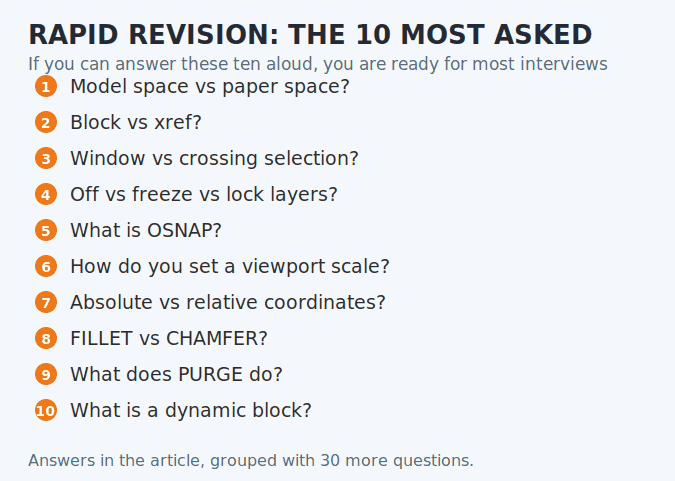
The same core topics appear in almost every interview: model space versus paper space, blocks versus xrefs, window versus crossing selection, layers and their states, and how you set a viewport scale. The 40 questions in this article are grouped around exactly those topics, with answers you can say out loud.
Work in three passes. First, revise the concepts in this article until each answer fits in two or three sentences. Second, practise one timed drawing, a small floor plan in 45 minutes, using layers and dimensions. Third, learn the commands behind every answer, because follow-up questions usually ask how, not what.
Very often, yes. Many employers sit you at a computer with a printed sketch or PDF and a time limit, then judge the drawing on correct units, sensible layers, accuracy and a clean layout, not just speed. Practise finishing one complete small drawing, with dimensions and a title block, inside an hour.
Enough to produce a complete drawing alone: setting units, drawing accurately with snaps and coordinates, organising work on layers, using blocks, dimensioning, and plotting to scale from a layout. That is roughly the comfortable stage of 2D skill, about 40 to 60 hours of focused practice for most learners.
It helps a fresher get shortlisted, because it gives the employer a verified baseline. Autodesk offers four levels, from Certified User up to Certified Expert; the Associate level suits new job-seekers and the Professional level suits experienced drafters. A strong portfolio drawing still matters alongside any certificate.
Say so plainly, then show your thinking: what you believe it is for, which similar command you do know, and how you would check. Interviewers forgive a missing command far more readily than a confident wrong answer, and the honesty-plus-method answer often scores better than a guess.
One thing: a single timed drawing from start to plotted layout, because it refreshes units, layers, blocks, dimensions and scaling in one pass. Then skim the concept questions, model space, xrefs, selection methods, and sleep. Cramming fifty new facts the night before rarely survives the drawing test.
The AutoCAD commands list worth bookmarking: 86 essential commands with shortcuts, grouped by task, plus F-keys, Ctrl shortcuts and the order to...
How to change image resolution in AutoCAD for map captures and Google Earth images, including a short LISP routine that sets Fine...
Learn how to insert a hatch pattern in AutoCAD: pick a pattern, set scale and angle, add custom PAT files and fix...
Free, short and practical. No spam, unsubscribe anytime.
Thanks! You are on the list.