How to Convert Text to Sketch Geometry in AutoCAD
Learn how to convert text to sketch geometry in AutoCAD with TXTEXP, WMFOUT/WMFIN or the PDF route, plus fixes for LT, curves...
You have drawn the outline of a slab, a wall section or a simple floor plan, and the shape still looks empty. A hatch fills that gap in seconds, but the first attempt often goes sideways: nothing fills, the lines merge into a dark block, or the pattern is so wide you can barely see it.
This guide shows how to insert a hatch pattern in AutoCAD from start to finish, how to tune it, how to add your own patterns, and how to fix the problems beginners run into most.
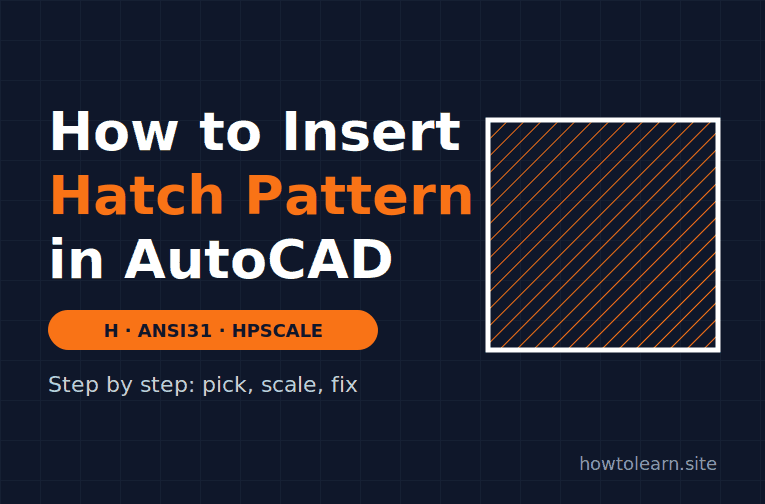
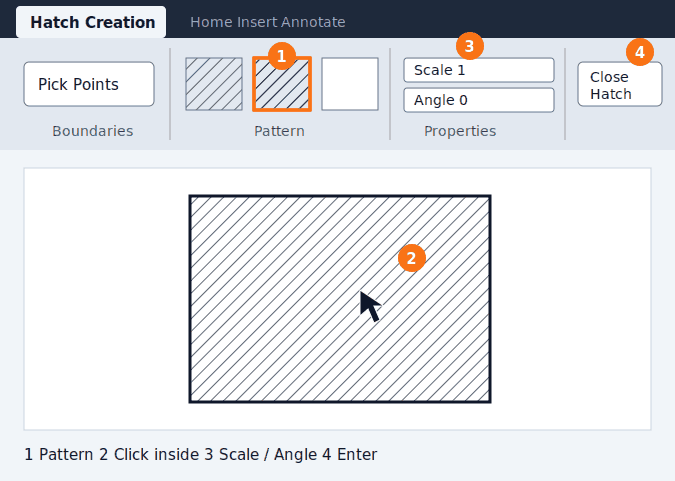
Short Answer: How do you insert a hatch pattern in AutoCAD? Type H and press Enter, choose a pattern on the Hatch Creation tab (for example ANSI31), click inside a fully closed area, change the scale and angle if the lines look too dense or too wide, then press Enter to apply it. The area has to be enclosed, or AutoCAD will not place the hatch.
Below are the full steps, plus the settings that decide whether your hatch looks right.
A hatch is a repeating pattern of lines, a solid color or a gradient that stands for a material in a drawing, such as concrete, steel or earth. AutoCAD needs a boundary so it knows where the pattern stops. When you click inside an area, it searches outward from your click for objects that form a complete loop. No loop, no hatch.
A few facts worth knowing before you start:
If you are still getting comfortable with the basics, the AutoCAD 2D learning guide gives you a sensible order to learn commands in.
By default, a new drawing starts with ANSI31 as the current pattern in imperial templates and ANGLE in metric ones, according to Autodesk’s documentation on the HPNAME variable.
Pick Points fills the region bounded by one or more objects around the spot you click. Select Boundary Objects fills a closed object, such as a circle, that you pick directly. Pick Points handles several objects that together make a loop. Some users report that Select Boundary Objects still works on awkward boundaries when Pick Points refuses, so it is worth trying both before you redraw anything.
The scale is where most beginners get stuck, because the same pattern looks completely different depending on your drawing units.
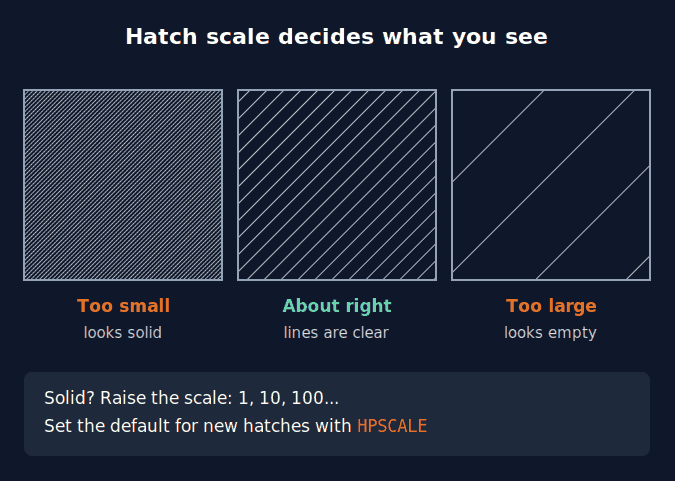
Scale stretches or shrinks the spacing of the pattern. The default is 1, and the setting behind it is HPSCALE. In a drawing made in millimeters, a scale of 1 can pack the lines so tightly that the area turns solid. Raise it in big steps (1, 10, 100) until you see individual lines, then fine-tune.
Angle rotates the pattern relative to the X axis of the current UCS. Many patterns already include a built-in slant, so test the angle visually rather than guessing.
A few related options matter once you move past the first hatch:
If you resized a drawing to match a known dimension, your hatch scale may need a second look. The article on scaling with two reference points in AutoCAD is a good companion when that happens.
You do not have to delete and redo a hatch to change it. Select the hatch and the Hatch Editor tab appears with almost the same controls as Hatch Creation. You can:
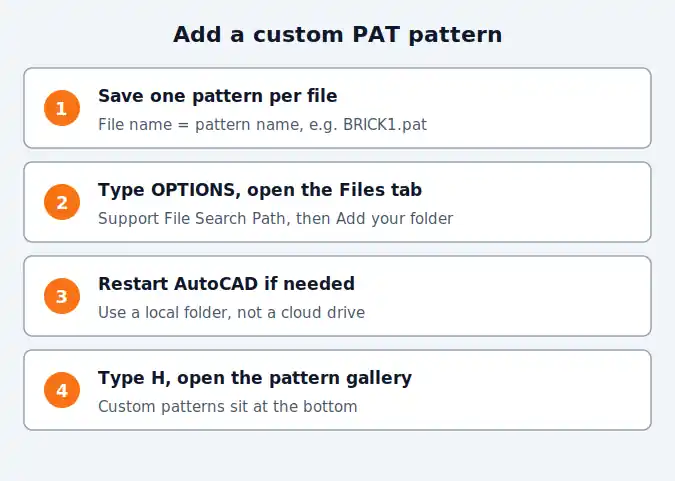
AutoCAD ships with a built-in set of patterns, but you can add your own from downloaded or self-written PAT files.
Some forum users also add the folder to Trusted Folders when a pattern still refuses to load.
SuperHatch is an Express Tools command that is not available in AutoCAD LT. It can turn a block or an image into a hatch-like fill, and Autodesk also points to it when a drawing uses a pattern whose PAT file is missing. Tutorial sites report that a pattern made this way stays inside that drawing and does not travel to other files. If you plan to build one from a symbol, learn how to make a block in AutoCAD first.
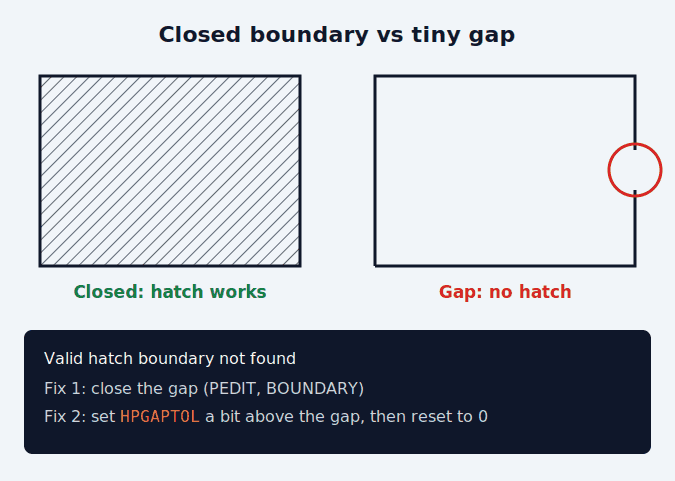
This message means AutoCAD cannot find a closed loop around your click. The cause is usually a gap too small to see, or overlapping and duplicate lines on the boundary.
The scale is too small for your units. Select the hatch and raise the scale on the Properties panel until lines appear. To set the default for the next hatches, type HPSCALE and enter a new value.
Check that FILLMODE is set to 1. If only some hatches disappear, the HPMAXLINES setting, which limits the number of lines in a hatch, can be involved. Autodesk reseller support articles also suggest recreating a corrupted hatch and running AUDIT on the file.
Autodesk’s support article lists the usual causes: the pattern was never properly added, the folder is not on the support path, the folder was renamed after being added, or it sits in a cloud drive. Also confirm that the PAT file name matches the pattern name.
As of October 2026, Autodesk’s help for AutoCAD 2026 still describes the same Hatch Creation workflow covered here, so these steps apply to current releases. If you want the official reference for every option on the tab, see Autodesk’s Hatch Creation ribbon documentation. For custom patterns, Autodesk Support has a page on installing custom hatch patterns in AutoCAD.
For more guidance, you can watch this video: How to add a hatch pattern in AutoCAD.
Type H and press Enter, pick a pattern on the Hatch Creation tab, click inside a closed area, adjust scale and angle, then press Enter. The area must be fully enclosed or AutoCAD will not place the hatch.
The boundary almost always has a tiny gap or overlapping lines. Close the gap with PEDIT or trim the corners, or raise HPGAPTOL slightly above the gap size and reset it to 0 afterwards.
The hatch scale is too small for your drawing units, so the lines pack together and merge. Select the hatch and raise the scale on the Properties panel until individual lines appear.
Select the hatch, then change the Scale value on the Properties panel of the Hatch Editor tab. You can also edit it in the Properties palette. The pattern updates right away.
Save each pattern in its own PAT file named exactly like the pattern, then add that folder under Options, Files, Support File Search Path. Custom patterns then appear at the bottom of the pattern gallery.
Pick Points fills the area enclosed by one or more objects around the spot you click. Select Boundary Objects fills a single closed object, such as a circle or closed polyline, that you select directly.
Not normally. AutoCAD needs a closed loop, but a small gap can be allowed by setting HPGAPTOL. A hatch made this way is not tied to the original lines, so closing the gap properly is better.
Learn how to convert text to sketch geometry in AutoCAD with TXTEXP, WMFOUT/WMFIN or the PDF route, plus fixes for LT, curves...
Learn how to choose a Jetson module: compare Orin Nano, Orin NX, AGX Orin and Thor by memory, power, JetPack support and...
Learn how to change units in AutoCAD with UNITS, -DWGUNITS and DIMSTYLE, plus scale factors and fixes for drawings that didn't resize....
Free, short and practical. No spam, unsubscribe anytime.
Thanks! You are on the list.